
SlackConnect Slack
Connect Slack
Connect your Slack workspace to your Kitana account so your team can run reviews in a channel.
Connect your workspace
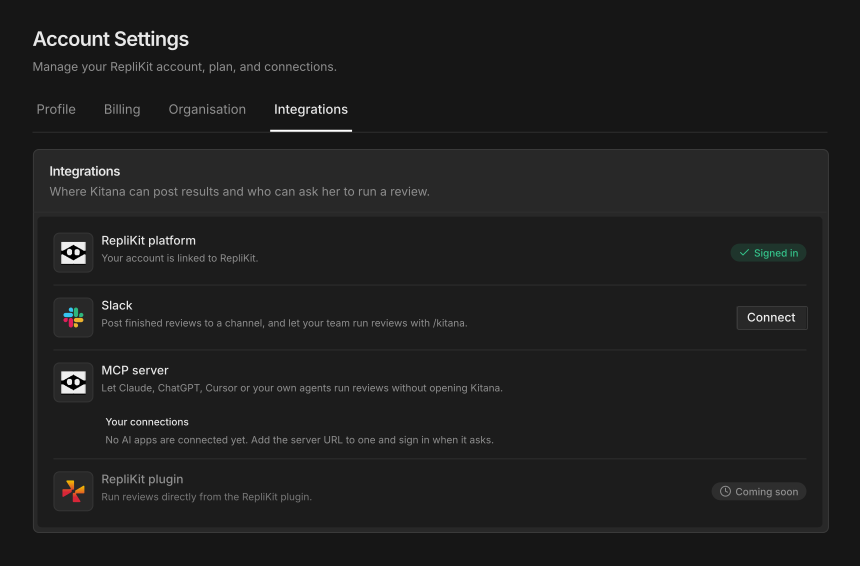
- In Kitana, open Account with the settings button in the sidebar.
- Open the Integrations tab.
- In the Slack row, select Connect.
- In Slack, approve the Kitana app for your workspace.
- Slack sends you back to Kitana. Sign in if Kitana asks you to.
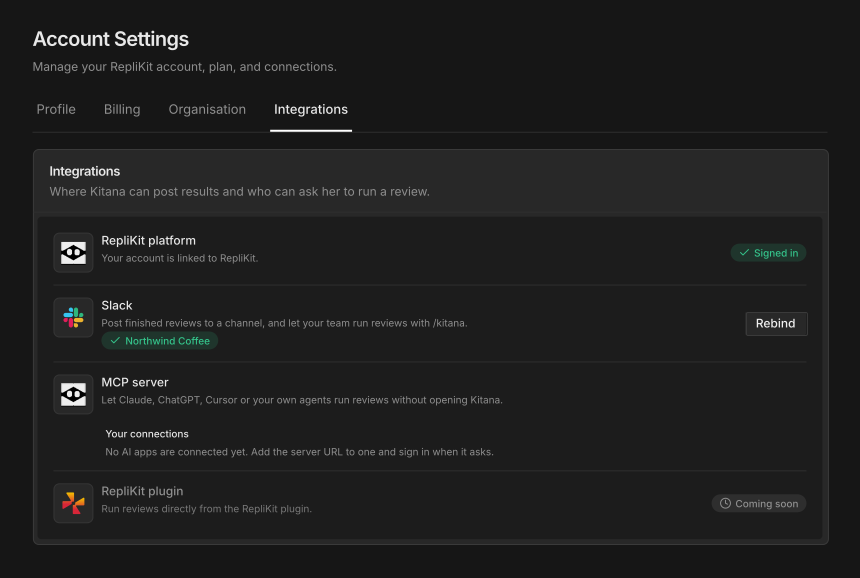
Kitana finishes the connection. The page says Slack workspace connected. Finished reviews will post to your channel. The Slack row now shows your workspace name.
If Kitana says the install link has already been used or has expired, select Connect again.
Who pays for reviews
A Slack workspace connects to one Kitana account. That account pays for every review started in the workspace. There is no separate Slack fee and no separate Slack allowance.
Connect a different account
To connect the workspace again, select Rebind in the Slack row. The new connection replaces the old one.
Let your team run reviews
A member can start a review when their Slack email matches a member of your Kitana workspace. You manage members in Account, on the Organisation tab. The request count also shows on that tab.
If a member's Slack email does not match, Kitana replies that their Slack account is not linked yet. The reply has a Request an invite button. The request goes to the owner of your Kitana workspace. When the owner approves it, the member gets an email invite.
A member who is not linked cannot start a review.
Next step
Kitana reviews work in public channels where the Kitana app is present. See Use Kitana in Slack.