
Kitana on the webBrand kits
Brand kits
A brand kit holds your colours, type, logos and rules. Kitana reviews every asset against one.
A brand kit is what Kitana checks your work against. It holds your colours, your type, your logos and your rules. You manage your kits on the Brand System page.
Where a kit comes from
Kitana builds a kit from one source:
- A website. Enter an
https://address. Kitana reads what is public on the page at that moment. - A guidelines file. Upload a PDF or DOCX file.
She extracts your colours, fonts, logos and tone. You can then edit anything she got wrong.
A brand kit learns from one source. If you add a new source, it replaces the old one and clears what Kitana found in it. For a guidelines file, this includes its brand rules.
If you do not want extraction, turn on Skip extraction, fill everything manually. You then fill in each section yourself.
Create a kit
- Open Brand System in the sidebar.
- Select New kit. If you have no kits yet, select Create a brand kit.
- In Sources, choose URL or File, add your source, then select Add. You can continue while the source is still being read.
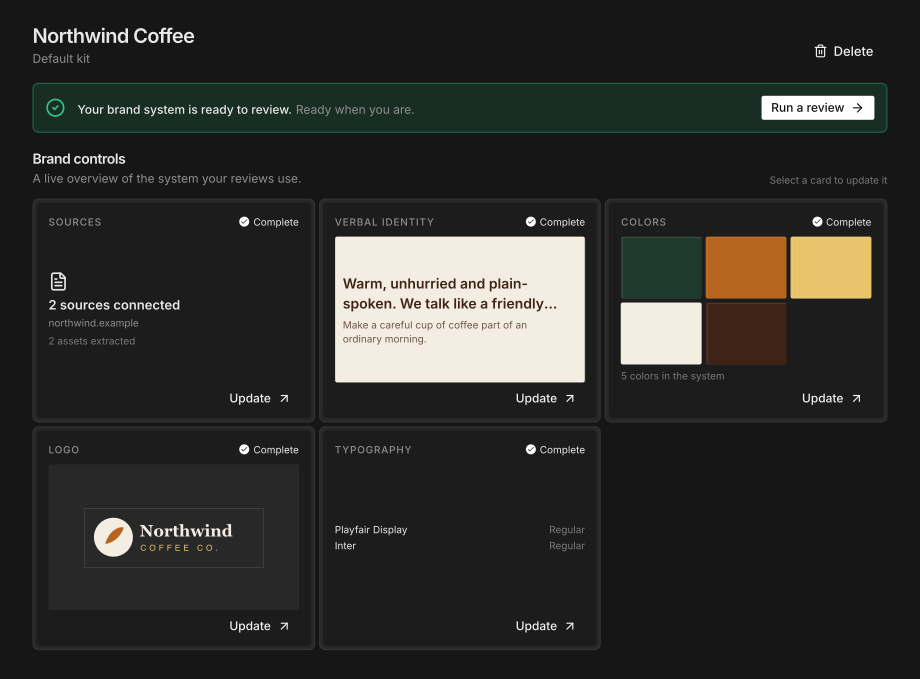
- Go through each section and fix what Kitana found:
- Verbal Identity: name, positioning and voice.
- Colors: palettes, combinations, proportions and contrast.
- Logo: lockups, on-colour usage and clear-space rules.
- Typography: type scale, families and role assignments.
- Select Finish. To stop and come back later, select Finish later. Your kit is saved as a draft.
To finish, every section must have something in it.
When a kit is ready to review
A kit card shows Ready to review when the kit has:
- at least one colour, and
- at least one typeface Kitana can use.
A logo is recommended but not required. Without a logo, Kitana still scores colour, typography and layout, but the logo checks do not run until you add one.
The default kit
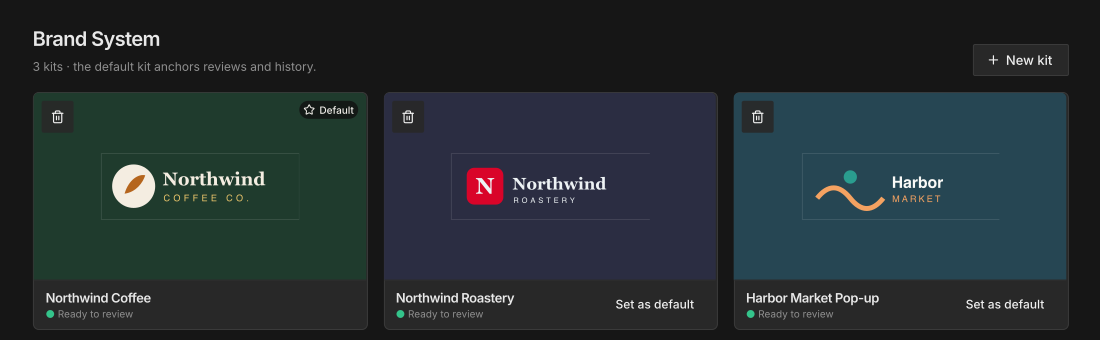
When you have more than one kit, one of them is the default. The default kit is the one reviews on the web run against, and the one Review History shows.
To change it, select Set as default on a kit card, or on the kit's own page.
In Slack and in the Figma plugin, you choose a kit in that channel. Over MCP, your agent uses the switch_kit tool.
Archive a kit
- On the Brand System page, select the archive button on the kit card.
- Select Archive kit to confirm.
An archived kit leaves the kit switcher, and its reviews are hidden everywhere, including Slack. Nothing is deleted. To get it back, select Show archived, then Restore. Its reviews come back with it.
How many kits you can have
- Free: 1 brand kit. If you try to create a second one, Kitana offers an upgrade instead.
- RepliKit Pro: more than one brand kit, shared across your organisation.
One credit is one review, on any of your brands.