Kitana on the webHistory and comparing
Review history
Find past reviews, follow your scores over time and compare two reviews side by side.
Every review is kept, wherever it started: on the web, in Figma, in Slack or over MCP. Open Review History in the sidebar to see them.
Which reviews you see
Review History shows the reviews for your default brand kit. Reviews of your other brands are not shown here. To see another brand's reviews, make that kit the default. See Brand kits.
Reviews of an archived kit are hidden until you restore the kit.
Your scores over time
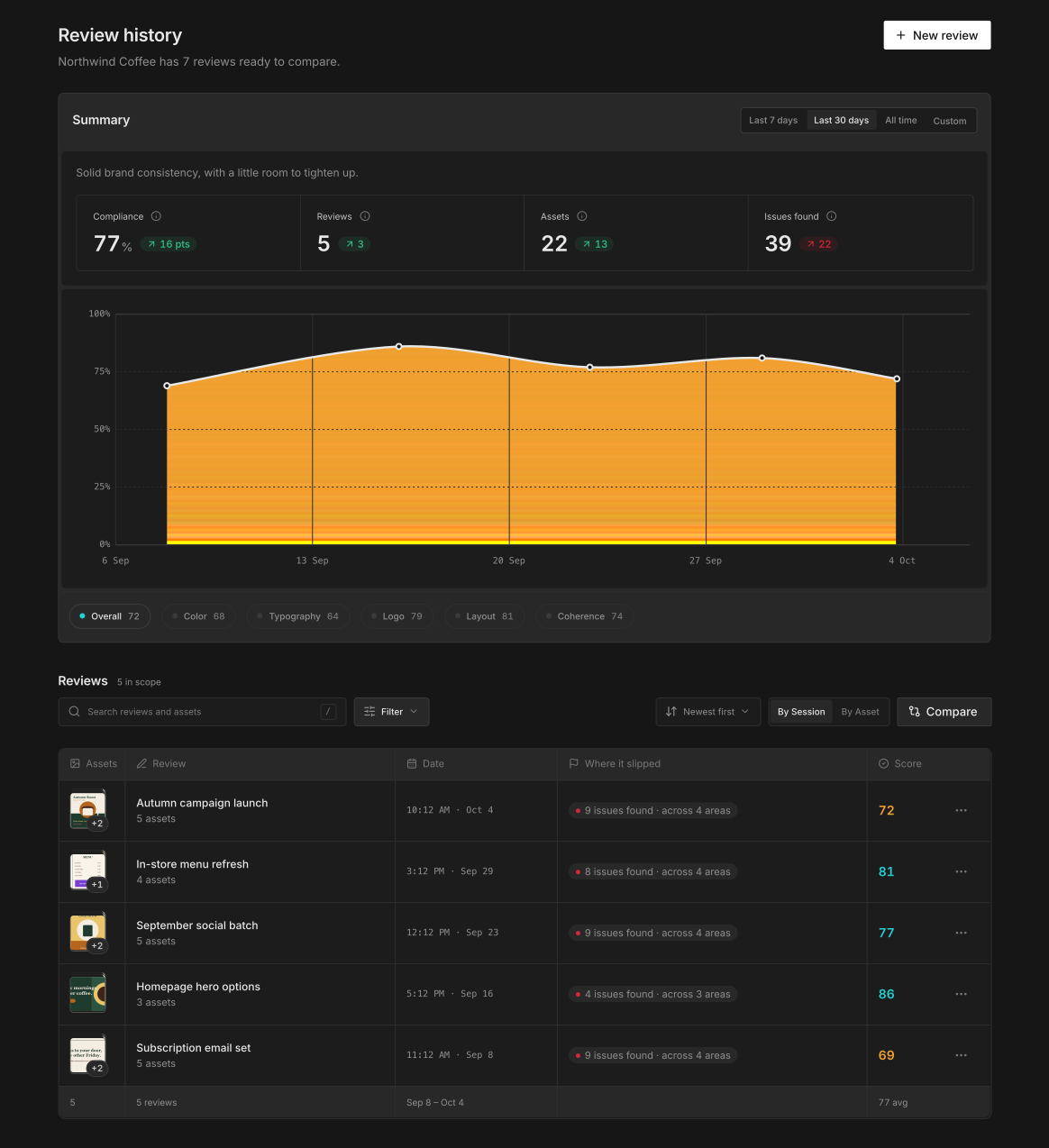
The top of the page sums up the reviews in scope:
- Compliance: the average brand score across the reviews.
- Reviews: the completed reviews in the chosen range.
- Assets: the scored assets across those reviews.
- Issues found: the issues found across those reviews.
Under the summary, a chart shows how each category moves over time. Use the legend to show or hide a category. Select a point on the chart to open that review.
Find a review
Under Reviews, you can:
- Type in Search reviews and assets.
- Select Filter to narrow the list by Score band, by Source (where the review started) or by Date. The date options are Last 7 days, Last 30 days, All time and Custom range.
- Sort by Newest first, Oldest first, Highest score, Lowest score, Most flags or Most assets.
- Group the list By session or By asset.
A review that started in Slack or over MCP carries a badge with that channel's name.
Select a review to open it.
Rename or delete a review
- To rename a review, select the edit button next to its name, type the new name and press Enter. Press Escape to cancel. A review with no name shows as Untitled review.
- To delete a review, open its actions menu and select Delete. Deleting a review cannot be undone.
Compare two reviews
- In the By session view, select Compare.
- Select two reviews. The page counts your choice, for example Select two reviews to compare (1/2).
- The Compare reviews page opens.
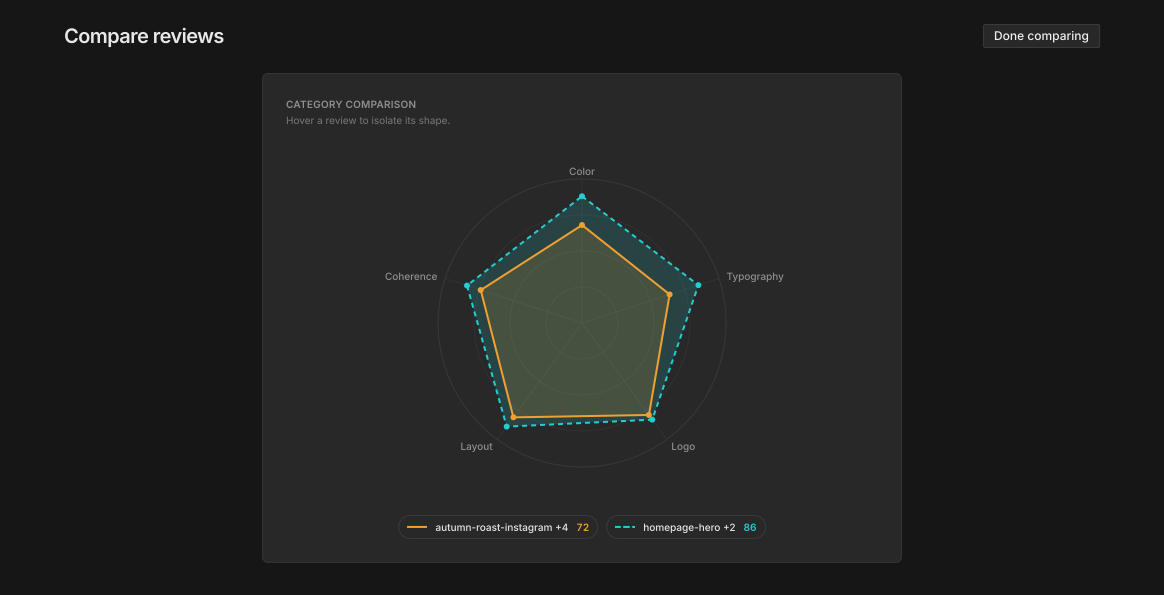
When both reviews scored at least three of the same categories, the Category comparison chart lays one review over the other. Hover a review to isolate its shape. Otherwise, the page shows the two scores side by side.
Select Done comparing to go back to the list.
Your AI agent can also compare reviews over MCP, with the compare_reviews tool. See the tools reference.